It is about a week before Digital Workplace 24 (#DW24) kicks off on Tuesday May 14, 11 am GMT!
For those who do not know it yet: this is a 24 hour non-stop interactive “show” featuring live tours and talks about the Digital Workplace. It is being organized by the Digital Workplace Group and it is a follow-up of earlier IBF24 shows.
I have attended several editions of IBF24 and I even co-hosted part of the 2011 edition. It has been wonderful to be part of such a unique event and I am really looking forward to this new one! I have always found it very inspiring and thought-provoking to see what other companies and thought leaders are doing. And now that the scope has been widened to ”Digital Workplace” you can expect to see not only intranets, but also other work-related technology such as tablet and mobile apps, social business, games and even telepresence robots! How often do you have the chance to see so many intranets and cutting-edge work technologies all in the course of 24 hours?
So, clear your agenda, or arrange to see this with your colleagues, and sign up! It is free and you can join, leave and rejoin as you want. Check the schedule if you want to know more details. If you want to get really involved, you can also join the Wide Awake Club or be a live blogger!
What can you expect to see and hear?
Featured guests: Rebecca Richmond, Dan Pontefract, Evan Rosen, Maish Nichani, Euan Semple, Andrew Wright and many more.
Companies that will show parts of their Digital Workplace: a.o. IKEA, Alaskan Airlines, Barclays, Coca Cola, Tata Finance and Accenture.
Platforms: SharePoint (XL Group, Woods Bagot and I have heard rumours there will be another), Jive, SAP, Newsgator, Chatter, IBM Connections, iPad etc.
The winner of 2012′s My Beautiful Intranet, International Enterprises Singapore, will also be present, as will Weston Solutions, one of the winners of the 2012 Intranet Innovation Awards.
And you can take part in the My Inspiring Workplace contest and win a gorgeous office chair by Herman Miller. Cast your vote in any case.
The more, the merrier!
Please share this information with your audience. And if you will be attending, why not Tweet (#DW24) about what you see and think?
Don’t you like a nice view? So, next time you have configured a page with a web part in default view, consider if this really the best possible way to display your content for your audience. Can you make better use of the sorting, grouping, filtering and other capabilities to make your content easier to digest for your users?
Here are a few situations that may help you take a decision:
How collaborative is your site?
If you want to display read-only content for a large audience, do not show edit options. Although edit links, item names and buttons are security-trimmed, having no edit options will allow you to design and view the page exactly like your audience sees it.
But if you have a site where you share documents with your team, make sure there are plenty of edit options on every page to stimulate online collaboration.
What is your content?
If you have a project team or your department working on various documents, it is wise to show the latest document on top. (Sort by Modified, descending). That will show everyone what has happened in the site recently.
But if your content is manuals or instructions, and fairly static, you may want to sort on title, either alphabetically or numerically. Please keep in mind SharePoint is a little weird with sorting numbers in text – please use 01, 02, …10 to avoid sorting your stuff as 1, 10, 11…etc.
And do you really need to add “Manual” or “Policy” in every document name?
How many people contribute to your site?
If just one or two people are editing in your site, the Created By or Modified By columns will display the same names over and over again. That does not add much value. Another column may give your audience more information. You can also leave out that column and make your page appear less cluttered.
But if you have many people working in your site, the Created By and/or Modified By, as well as the date, ARE important. In highly collaborative sites, the Modified and Modified By may be the best option.
For issues however, the Created By and Created give more information. And you may want to sort issues on Due Date – Ascending, displaying the items with the earliest dates first.
How much space is available?
When your list or library is the main content on the page the center web part zone will be the best place to display it. You will have enough horizontal space to add a few meaningful columns.
But when the main real estate of the page is taken up by an explanatory text, and the official policies are listed as “additional information” in the right column, you only have room to display a title…so keep that short and sweet!

Example of explanatory text and a small sidebar for related information.
The text is my own invention and not an existing policy!
If you have limitations on vertical space, you may want to display your information grouped and collapsed, with a filter and/or an item limit.
I often use “Last 5 or 10 documents” on a homepage, where I use Modified Descending combined with Item Limit = 5 or 10.
Who has to do it?
For Tasks lists, Issue lists or if you need to manage the life cycle of your content, a view with Assigned To, Created By or Modified By = [Me] is essential. It allows you to see (and act on) the items that you are responsible for.
I sometimes use a “My” view to hide content. It is not security, and it is not water-tight, but it helps to make content less visible for others.
Need to know how much or how many?
Displaying Totals can be very useful. I often use a Count to check if all documents have copied over successfully from one location to another, or to see how many tasks or issues are awaiting my attention. I have also used the Sum to show or how much money was generated by a project.
Avoid using them on a grouped list, because Totals take up a lot of vertical space and can make your content appear very cluttered. And annoyingly, SharePoint can not do a Sum on Calculated Columns.
It is worth spending time on this.
In many of the solutions I have created, I have discussed the Views in much detail with the owners and end users. Some want to read and act on the relevant information quickly, without having to open each individual item. Some may need a “first glance”insight” overview. Some may need a very specific filter for data analysis. For different audiences and purposes you can use different views. I think Views are one of the best features of SharePoint!
In CRM in a Team Site, we had a.o.:
- “All open Incidents” with a “Sum” on the homepage to show immediately how much money was involved with complaints.
- “My Incidents” for everyone that was involved in reviewing or approving incidents. It was based on “Assigned to me”.
- “Incidents per Transport Company”, allowing the process owner to see the performance of each transporter.
- “Still Open after 14 days”, helping to reduce turnaround time, etc.
- “Credit Note in progress” overview, showing all incidents for which a Credit Note had to be issued. This helped Sales and Back Office people when they had contact with customers.
You will get the idea. Discussing and creating/fine tuning Views can be a lot of work, but it will also make your content so much better to find and understand, your process so much easier, and your users so much happier!
If you need more technical/functional information on SharePoint Views, please download this ebook by Chris Poteet.
Image courtesy of Evgeni Dinev at FreeDigitalPhotos.net
When you select your clothes for today, you can decide to wear something that is clean, whole and covers what needs to be covered. You can also refine your selection by choosing something that matches your mood and flatters your personality, figure and colouring. Then you can add accessories like jewelry, a scarf and a good handbag to make the end result even better.
Hello! This is a SharePoint blog!
Yes, be patient, I am getting there
.
Most people think that SharePoint does not look nice. So they customize the standard look and feel. They bring in a bunch of designers for every site that facilitates an important corporate initiative. They add pictures, icons and headers to sites with lesser visibility, all to make it look a little better.
Yet these are just the accessories that only work well when the content is good, and is displayed in the best possible way.
How do I display my content in the best way?
Using the default view for a web part or a list/library is dressing your content in something that does what it must do. Functional, but not always optimal. Why not put in some effort to make sure it is really both the best possible content and it looks good?
First of all, check if the columns, sort order, filters and grouping that you display are just right for your purpose and your audience.
Then you can select a View Style that enhances your content style, makes it easy for your audience to use it, and displays it in its full glory.
Where do I find the View Styles?
They are on the page where you create or modify a View, between “Totals” and “Folders”. If you expand it, you will see a number of different styles. Most styles mentioned below are available for Lists as well as Document and Picture libraries.
Basic Table and Default.
This is the default look. In my Office 365/SharePoint 2010 environment they are the same. In Picture Libraries, the default style is the Picture Library Details style.
Boxed, no labels and Boxed.
Both styles display your line item in a coloured box, showing two items next to each other in the zone. This is ideal to display content such as contact details. The “Boxed” displays the column names, the “Boxed no labels” does not and is somewhat crisper, but only when the content speaks for itself. (e.g. you will recognize that the content is address and telephone number, or as in the example below, it is an announcement).
This style is comparable to the “Document Details” view in Document and Picture Libraries.
Newsletter and Newsletter, no lines.
If your list has a “multiple lines of text” column the Newsletter Style will make the most of your text content. Your text field will be spread over the full width of the zone, which reads much easier and makes much better use of the column width.
Make sure the text box is the last column to be displayed in the view, and use the minimum of other columns (e.g. Title, Created and Created By) to make your text stand out!
I have used this style for the memo’s in Facebook in a Team Site, and for an in-company blog (based on an Announcement list) before we had proper blog functionality.
Shaded.
Does your long list look plain and boring? Is it difficult to see which line item is which? Are you tired of that solid block of white background? You may want to try the Shaded Style. This adds a soft background colour to alternate line items. It is ideal to break up long lists or lists where the column content is spread over two or more lines. Using the Shaded view makes it easy to see which content belongs to which line item. This is the style I use most often.
Preview Pane.
Do you want to show many columns in your list, but you do not have enough room in your zone to display nicely? Or do you have a long list wtih many columns? The Preview Pane shows all item titles on the left hand side, and the other selected columns of the item when you hover over the title. This way you can show your content on-demand, in a compact way. Your titles should be very precise, of course, because you have no other indication of the content.
Please note that styles may change functionality; please read Veronique’s post.
Do you have any nice examples of using different styles to display your content? And what is your favourite style?
Image courtesy of debspoons at FreeDigitalPhotos.net
Title based on the band The Style Council. I wonder where they got their name from?
When talking to end users, I often notice that people think they need to spread their documents over various document libraries to create meaningful groups of documents.
In general, I suggest them to use one document library as much as possible, and use metadata to organize documents. This will have the advantage that they have the complete set of documentation with context and do not have to click on individual document libraries to find a document they are looking for.
But in the following situations it may be better to use multiple libraries:
- Different audiences.
A common example is a library only accessible to the Management Team or the Project Team, which contains documents-in-progress or documents with confidential information. While the content belongs to the site in question, you do not want all users to see those documents. I always suggest to add this information (“only accessible for the Project Team”) to the description of the document library, so the site owner does not forget.
In theory you could use a secured folder, but only if you add “restricted” to the name…but you want folder names to be short. - Very different set of metadata.
If one set of documents needs to be organized by topic, review date and document owner, while another set needs organizing by topic, location and business process, you want different libraries. In theory you could use one, but it would mean that the upload page becomes a long one, and too many fields will be optional. - Complex or too many metadata.
I have once had to create a library to document all of a factory’s processes. They had many metadata columns, but that could be easily accomodated. However, the documents had to be displayed on several pages, with a connection filter for easy display and retrieval. For some pages I needed more than the 10 filters that SharePoint allows in a view, so after many experiments I had to create several libraries. The limitations of the views were the problem, not the library itself. - Different contributors or ownership.
If you have contributors or owners from many different parts of the organization, or a large difference in skills and experience, it may be better to set up a library for each team. That will avoid misunderstandings and mishaps in maintenance of content, users, metadata and views. - Advanced settings.
You may need versioning, an approval workflow or autodelete after 1 year for a small subset of your documents only. In those cases, it is better to have one library per advanced setting. Advanced settings often have to comply with company policies and they always need extra maintenance, so the less documents you have with those settings, the better. - Too many documents. While the technical SharePoint limit is 5 million documents per library, in practice the performance of your platform may not be able to handle that. Also, you may experience issues with backup and restore of libraries with many items. You need more libraries if you anticipate you will have more documents than the recommended number allows.
- You can not add metadata. When a team wanted the ability to upload documents by email, I thought it would be better to create a separate library. Beacuse with upload via email you have no option to add metadata while uploading. The only options for any structure are to add metadata afterwards (which is likely to be forgotten), or to group the documents in folders “by sender” (which is redundant since “Created By” is added by default) or “by email subject” (which is risky unless contributors are very systematic in their email subjects).
So, in this library we used “by email subject” and ended up with folders named “visit report”, “customer visit report”, “meeting report”, “customer meeting 25 March 2012″, and similar names, often containing only one document. I was happy to separate that embarrasing library from the other documents
. Needless to say I try to discourage the use of email-enabled libraries, unless the contributors use a very strict naming convention.
There are also some occasions when you think you need a different library, but really don’t:
- You need more templates to choose from. In earlier versions you could ony add one template to a document library, so when you needed a choice of templates, you had to create a new library. This is no longer the case; you can create several Content Types in one library.
- Single-topic notifications. This occurred when a team wanted Alerts for one specific topic only and they thought it could only be done by creating an extra library for this topic. Luckily I could show them in time that you can set an Alert for a specific view, as long as the view contains a filter.
3. You do not want to add metadata. You think that crawling 10 libraries every time you are looking for a document is less work than spending a minute on ticking the right boxes during upload? I challenge you to a test with a timer! Besides, it means that you are not exactly helping your audience either – they will also have to spend too much time looking for documents.
Have you experienced any other situations to add to one of these lists? Would you do it differently? Please share!
When I visit “collaborative” sites, e.g. for a team, a department or a project, I often find a document library called ”Meetings”, or even worse, several document libraries, each for one particular meeting date. These generally contain documents for prereading, presentations from the meeting, agenda and minutes. And sometimes they have an action or decision list as well.
The good thing is that these meeting documens are now in one clear online location, and that (hopefully) sending documents via email and printing are reduced.
But now think again. It is 2013.
- Do you still store everything in document format, while there are ways to do thing directly online?
- Do you have to open multiple Meeting Minutes or Decision List documents when you are looking for that one decision from early 2012, but forgot the exact date?
- Is there still someone responsible for writing down “refer to next meeting” for several agenda items in the Meeting Minutes, and then remembering to add them to the next meeting agenda?
- Are you still emailing various draft agenda’s to your team?
- Does someone in your team have to collect the progress of the action list and recreate the new Action list?
- Do you have to chase everyone for approval of the meeting minutes?
A different approach.
It may be time to move to a simpler process. Of course there is the Meeting Workspace, but sometimes you prefer to have everything in one site. The MW will also no longer be supported in SP2013. An alternative is the Meeting-Agenda-and-Minutes List, combining agenda, meeting minutes and decisions in one list. Our team started this in about 2002 and we have happily used it for our weekly team meeting for years.
The concept is as follows:
- Everything you discuss is first an agenda item. The owner of the item creates and manages it themselves.
- All items not marked as “completed” are visible.
- The meeting owner adjusts the order of the agenda items just before the meeting.
- During the meeting, the item is discussed. We always had online meetings, so we viewed items on-screen. The item owner can adjust the item while discussing, and show the updates to the team.
- After discussing the item, the decision and date are added to the item and the status is set to “completed”.
- All completed discussions are stored in one or more “completed” views, sorted and grouped as needed.
Example.
Does it sound complicated? Let me show you the (Custom) list that I have worked with.
This is an item on the agenda:
This is the agenda, sorted on “Order” and filtered by “Status is not equal to completed”.
During the discussion, the relevant info and decision are captured in the bottom fields of the item.
This is the view that shows all items that have been discussed. You can easily filter for specific topics, regardless of meeting date. Of course you can also group on other metadata, but this view clearly shows the increased transparancy compared to Meeting Minutes in document format.
Of course you can simplify or extend the list to fit your own meeting style and goals.
What are the advantages?
- No need to send agendas via email; if everyone sets a notification you wil get a message when a new item has been added or changed.
- The meeting owner can easily adjust the order of items
- During the meeting, the item is open and any next steps can be added straight away
- When something is not discussed or no decision has taken place, it simply stays on the list. You do not have to specifically state that it is “moved to the next meeting”.
- One archive of individual decisions means you do not have to look through documents by date. Now that you have one “online database” it is much easier to find any decisions relating to your topic, since they can be found by date AND by creator AND by tag if you have used those.
- Everyone has seen the decision so there is no need to circulate any meeting minutes for approval.
Will this work for all meetings?
Of course this needs change management. If your organization is relying heavily on documents, not used to PC’s and projectors in the meeting room, or has been pampered by people sending things to them, this will be a big change that will need discussion, training and an extensive trial period.
It may be wise to measure time involved in the current meeting setup beforehand and to compare that to the new setup. This informaton will also help you to convince others.
For some meeting types this setup may not be appropriate. There may be legal requirements to have documents, perhaps even printed, with handwritten signatures, or some external participants may not have access to your SharePoint environment.
But for your average team, department or project group meeting, this may save lots of time!
Have you used something similar? Please share!
Note April 2013: Gene Vangampelaare shares his use of OneNote for meetings. Nice!
To the left you see my cutlery drawer. Normally it is out of view and only visible when I open the drawer. All items are arranged by type.
This gives me a good overview of the amount and types of knives, spoons and forks available, and if I have to do some washing up before the next meal
.
On the right you see my set table for one. Depending on the time of day and the exact menu, I have arranged the relevant knives, forks and spoons into an established pattern around the plate. I can add wine glasses, tea cups or milk mugs, napkins, finger bowls and what not to make it useful for that particular meal, as well as nice-looking.
And the relationship with SharePoint is…?
In my SharePoint jobs I have often found that people mix up the words ”site”, “page” and “library” when they ask me for a place to store (and/or show) documents. I can easily explain what a site is, but it has taken me some time to come up with explaining the difference between document library and page for someone not experienced in SharePoint. So like my last post, I tried to come up with a household example.
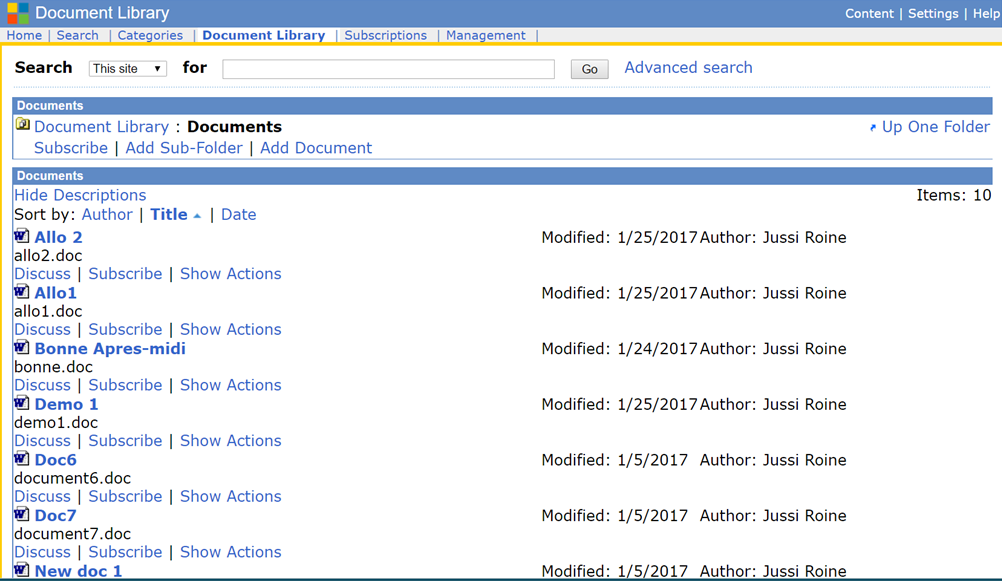
Let us compare a document library with my cutlery drawer. It is a place where you store all content items that are in document format; they take up minimal space, you have a good overview of what is there and there are some special features that can be applied to all items in there. It does not look extremely pretty, but it does its job.
A document library is a place to store and manage content.
A page would then be comparable with my table setting. Here you combine the relevant documents with other content in a way that will make it easy and pleasant for your audience to consume that content. You may want to add an intro text, a picture, the name of the contact person, a list of related information etc.
A page is therefore functionality to display content and context.
Do I always have to set the table?
Whether you have to set the table at all is depending on your audience. If it is just me, I do not set the table; I put food on my plate and grab the relevant silverware straight from the drawer.
If your audience is your own small team or department, there is no urgent need to make pretty pages; you can save time by using the document library as it is. On the other hand, setting up a page can make the experience nicer. As long as you realize you have a choice. The page is optional – but you will always need your document library.
But if you have a large audience, and/or you want to lure people to your content, help them with understanding your content, or impress them, it is much better to use a page. That way you can show exactly the documents they need, in the best possible view, and you can add context and make it look attractive.
For a more functional explanation of the differences, please read Veronique Palmer’s recent post on the difference between lists, libraries and pages.
What do you think?
Is this an explanation that you would use, or do you have a better one? In both cases, please let me know!
(And other household-comparisons are still welcome too)